Table of Contents
New SmartPID web app
From Monday 23 November 2026, 22:00 CET, SmartPID runs on a new cloud platform, with a new app: more modern, faster and more secure, and simpler to use.
Your controller keeps working, always. Every SmartPID controller runs its control process 100% on its own. Wi-Fi and the app are an extra on top, for remote monitoring and control.
Where to find it
| Product | Address |
|---|---|
| Smart thermostats: M5 Pro (smart thermostat, smart hottub), M5 Mini, CUBE / SPC1000 smart thermostat | mypid.smartpid.com |
| Homebrewing and fermentation: CUBE / SPC1000 smart homebrewing, M5 Pro smart fermenter | mybrew.smartpid.com (new) |
| SmartPID BBQ (Pro, Easy, Hybrid, EasyColor+) | mybbq.smartpid.com |
From any of these addresses you see all the devices of your account: each one shows its own products first. Homebrewers who used mypid until now can keep doing so, but mybrew is now their home.
Sign in with your usual email and password. The app runs in the browser (Google Chrome recommended) on phone, tablet and computer.
Install it like an app: in Chrome open the menu ⋮ and choose “Install app” or “Add to Home screen”. On iPhone, in Safari: Share → “Add to Home Screen” (notifications on iPhone need the app on the Home Screen and iOS 16.4 or later).

What changes
- A new web app at the usual addresses, replacing the previous MyPID and MyBBQ web apps: for phone, tablet and computer, installable on the home screen.
- CUBE / SPC1000 owners move from the native Android apps “Smart Homebrewing” and “Smart Thermostat”, which no longer work, to the same web app.
- Same addresses and same login, with the look of your product.
- Push notifications for alarms and events, chosen device by device.
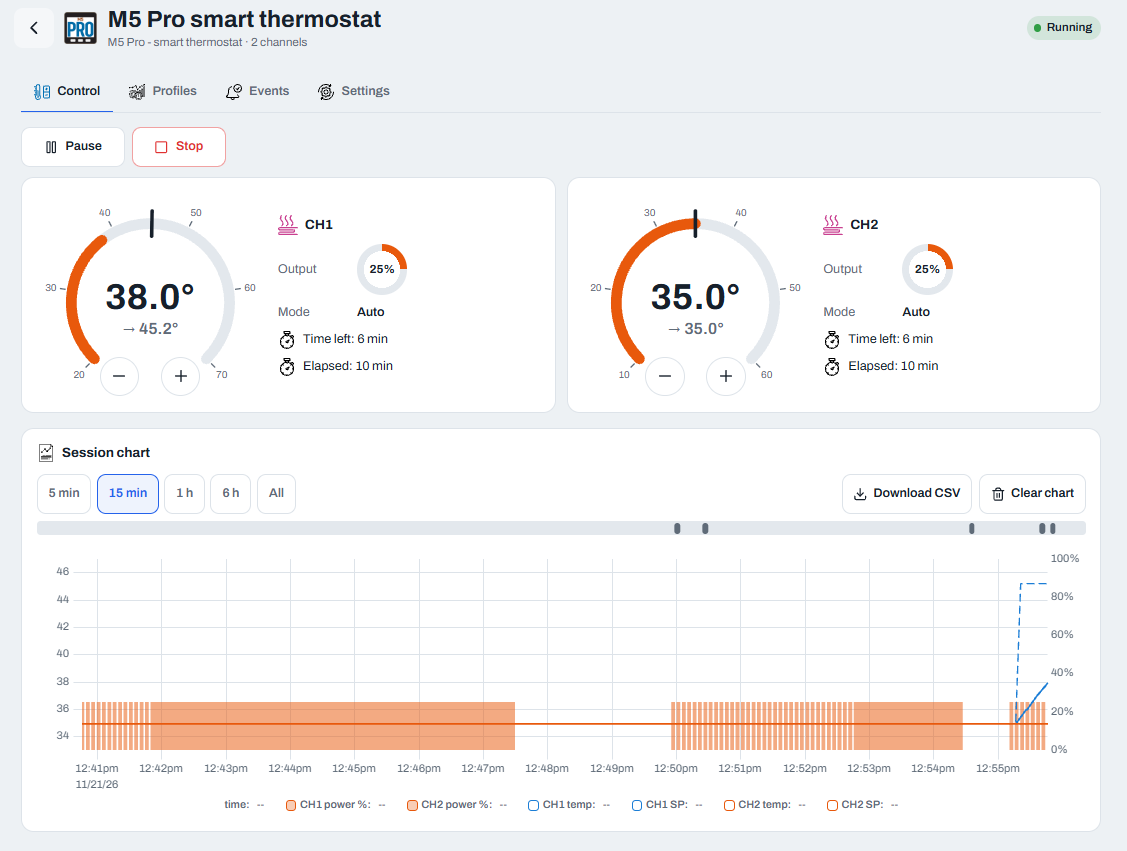
- Chart of the session, with “Download CSV”.
- Event log, with “Download events”.
How it works
- Device list. Each device shows live temperature, set point and state; alarms appear at the top.
- Device page, with tabs:
- Control: start and stop, set point, outputs, the controls specific to your model;
- Chart: the trend of the current session (on computer it sits under the controls);
- Profiles or Recipes, depending on the model;
- Events: what happened and when;
- Settings: name, unit, notifications.
- Add a device from the list with its serial number.
- Account: profile, password and the device password, used by third-party services such as Brewfather.
SmartPID CUBE / SPC1000 (smart homebrewing, smart thermostat)
These controllers connect to the server by IP address. They keep working until 31 December 2026 through a temporary redirect; before then set the new server address 146.190.205.6, with the same Wi-Fi setup done at first installation:
- In the controller menu (Wi-Fi/MQTT connectivity), set “Wi-Fi mode” to AP.
- With your phone or computer, connect to the Wi-Fi network SPC1000_XXXX created by the controller (default password smartpid!). Turn off mobile data during the setup.
- Open the browser at
http://192.168.4.1. - In the form enter your home Wi-Fi name and password, your SmartPID account email and password (as the first time), and as server IP 146.190.205.6, port 1883. Save: the controller restarts.
- Back in the Wi-Fi/MQTT menu, set “Wi-Fi mode” to Client and check that the status is “connected”.
Brewfather
Brewfather keeps working with the same SmartPID account your controller is registered with. If you create a new account, or generate a new device password in the app, enter it in Brewfather.
Help
Write to smartpid@arzaman.com, with your device serial number if the question is about a device.